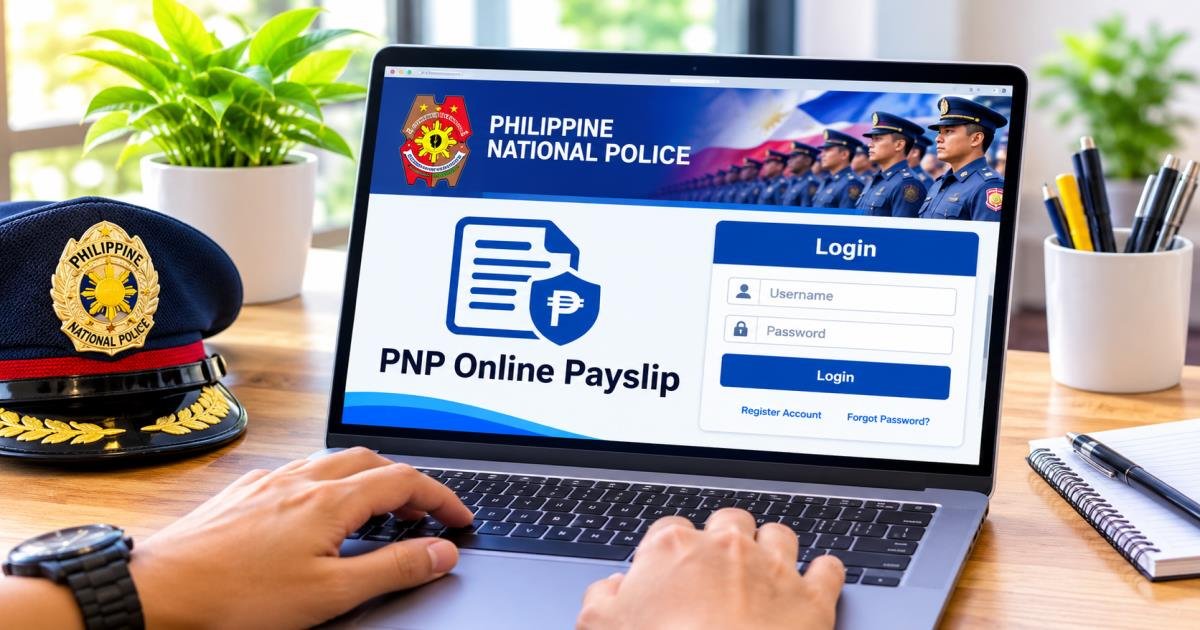
PNP Online Payslip: Login, Download & Complete Guide
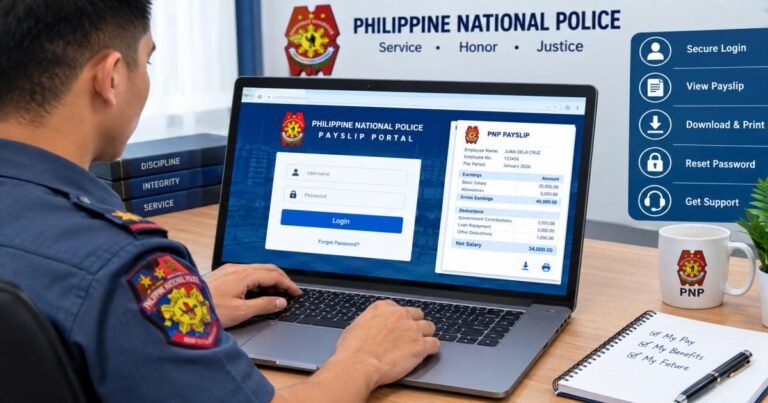
The PNP online payslip system is an official web portal managed by the Philippine National Police Finance Service. It provides active police officers, non-uniformed personnel (NUP), and authorized payees secure, 24/7 digital access to view, verify, and download their official monthly salary statements, itemized allowances, and payroll deductions.
What Is PNP Online Payslip?
The PNP online payslip system serves as the central digital portal for payroll accounting within the Philippine National Police. Developed under the oversight of the PNP Finance Service (FS), this platform modernizes salary disbursement tracking across all regional offices and national operational support units.
Through this system, the Philippine National Police replaces traditional printed paper stubs with secure electronic records. Digital payslips ensure transparent accounting, giving officers real-time visibility into their monthly compensation, mandatory government contributions, and recurring loan obligations.
PNP personnel require digital payslip access to verify accurate salary releases, check loan remittance status, and maintain proof of income. These electronic salary statements are widely required when applying for financial services, bank loans, institutional housing, or secondary clearance verifications.
Eligible users include all active uniformed personnel of the PNP, active Non-Uniformed Personnel (NUP), and designated payroll administrative officers assigned to manage unit accounts.
PNP Online Payslip Portal: Official Website and Access
The PNP Finance Service is the primary administrative arm tasked with managing financial resources, disbursing monthly salaries, and recording all financial transactions across the police organization. To facilitate these operations online, the Finance Service maintains web infrastructure connected to the Police Management System.
The official PNP online payslip portal sign up and login address is hosted at payslip.pnppms.org.
Before entering any sensitive account credentials, personnel must verify that the website URL matches the official domain (payslip.pnppms.org) exactly. Ensure the web browser displays a valid SSL security lock icon adjacent to the web address to safeguard credentials against phishing scams or fake domain clones.
It is important to understand the distinction between the PNP Online Payslip portal and the PNP Online PAIS (Personnel Accounting Information System). While the online payslip portal handles payroll records, salary breakdowns, and financial statements, PAIS manages personnel service records, unit assignments, promotion orders, and administrative history.
Account security precautions require personnel never to share their login details, avoid saving passwords on shared public terminals, and log out immediately after finishing a session.
How to Log In to PNP Online Payslip
Accessing the PNP online payslip portal requires a stable internet connection, an updated web browser, a registered PNP ID number or account username, and the associated account password.
Follow these steps for a standard pnp online payslip log in:
- Open your web browser and navigate directly to the official pnp online payslip portal (payslip.pnppms.org).
- Locate the central login interface on the homepage.
- Type your registered PNP ID number or username into the primary identification field.
- Enter your account password carefully, taking note of capital letters and special characters.
- Complete the visual CAPTCHA test shown on the page to verify user authenticity.
- Click the Login button to submit your credentials and access the main dashboard.
Upon successful authentication, the system opens your personal dashboard, displaying recent announcements from the PNP Finance Service along with navigation links to your payroll history. Always verify that your profile name, badge number, and current assigned unit displayed on the header match your service records accurately.
How to Download and Print Your PNP Online Payslip
Downloading an electronic copy of your monthly salary breakdown is straightforward once logged in.
Navigate to the primary navigation bar and select the Payslip or e-Payslip tab. Use the drop-down menu to choose your target payroll month and year. The portal supports access to both regular monthly payroll statements and supplemental pay releases.
Click the View Payslip button to open the detailed breakdown on screen. Check the displayed basic salary, allowances, and itemized deductions.
To download, click the Download PDF button located at the top or bottom of the document preview window. Save the file to a private directory on your personal computer or secure mobile storage.
To print a physical copy, open the saved PDF document in your preferred viewer, select the print command, set the paper orientation to standard size, and print. Ensure that the document prints clearly, as modern PNP online payslips feature an embedded QR code used by verifying institutions to check authenticity.
Always maintain password protection on personal devices where digital payslips are saved to protect confidential financial information from unauthorized viewing.
How to Register for a PNP Online Payslip Account
New PNP personnel, newly inducted NUPs, or officers who have not yet established digital portal access must complete account registration.
Registration requires your official PNP ID number, active primary email address, mobile phone number, current rank, and assigned unit details.
Follow these steps for pnp online payslip portal sign up:
- Access the portal home screen at payslip.pnppms.org.
- Click the Register or Sign Up link beneath the main login box.
- Complete the online registration form by providing your full legal name, PNP ID number, official email address, contact number, and organizational unit details.
- Set a strong password combining uppercase letters, lowercase letters, numbers, and symbols.
- Submit the registration form.
After submission, the system sends an automated activation link to your registered email inbox. Open the email and click the verification link to activate your account.
If the email fails to arrive, check your spam or junk folder. If registration fails due to system mismatch or incorrect baseline records, request assistance from your Regional Finance Service Office (RFSO) or local unit administrative officer to update your master profile.
How to Reset or Recover Your PNP Payslip Password
Forgotten credentials, locked accounts after consecutive incorrect entries, or mandatory security updates are common reasons personnel need password recovery.
To reset your password online:
- Visit the main login page at payslip.pnppms.org.
- Click the Forgot Password link below the credential inputs.
- Enter the email address linked to your online account.
- Open your email client and locate the automated password reset message from the portal.
- Click the reset link within the email body.
- Enter and confirm your new password, adhering to system complexity rules.
If you no longer have access to the email address used during initial account setup, automated online recovery will not function. In such cases, contact your unit finance officer or visit the nearest RFSO desk. Administrative personnel will perform manual identity verification—requiring your physical PNP ID and service card—before updating your email address or clearing account locks.
When creating a new password, avoid using easily guessed combinations such as birth dates or simple sequential numbers. Choose a unique phrase to keep your financial account safe.
What Information Does a PNP Online Payslip Contain?
A standard electronic PNP payslip contains comprehensive details organized into distinct operational sections:
| Payslip Category | Details Included |
| Employee & Unit Details | Full legal name, rank, badge number, PNP ID, assigned unit code, retirement eligibility date, 16-digit account number, and target payroll period. |
| Earnings & Base Compensation | Monthly base pay established by rank grade, Personnel Economic Relief Allowance (PERA), hazard pay, longevity pay, and qualified specialty allowances. |
| Government Contributions | Mandatory statutory deductions including GSIS contributions, PhilHealth premiums, and Pag-IBIG fund remittances. |
| Authorized Financial Deductions | Recurring loan payments and savings remittances to recognized financial institutions (such as PSSLAI, AFPSLAI, or PMSMBFI) and court-ordered withholdings. |
| Tax Withholdings | Computed withholding taxes aligned with current Philippine taxation laws. |
| Final Summary | Gross salary earnings, total calculated deductions, and net take-home pay (NTHP). |
The top section also features a secure QR code. When scanned by financial institutions, this code confirms that the digital document matches the official database records maintained by the PNP Finance Service.
Key Features and Benefits of the PNP Online Payslip System
The transition to an online payslip system offers major administrative advantages for personnel across the Philippines.
- 24/7 Remote Accessibility: Active personnel stationed in any region can review their complete salary statements anytime using a desktop browser or mobile device.
- Instant Digital Archival: Officers can view current payroll releases and retrieve records from previous months without waiting for physical paper distributions.
- Faster Financial Verification: Features like the built-in QR verification code allow personnel to quickly present validated financial documentation for loan applications or official record requirements.
- Paperless Administrative Efficiency: Reduces physical printing costs and prevents document loss, damage, or delay during transport to remote precinct stations.
- Streamlined Deductions Oversight: Personnel can easily track loan amortizations and statutory deductions, ensuring that payments are properly credited each month.
Common PNP Online Payslip Login Problems and Solutions
Technical difficulties occasionally occur when accessing the online portal. The following solutions address the most common issues:
- Incorrect Login Credentials: Double-check your entered PNP ID number. Officers sometimes mistakenly type their badge number or serial number instead of their official PNP ID. Verify that the Caps Lock key is turned off.
- Temporary Account Lockouts: Entering an incorrect password multiple times locks the account. Wait 30 minutes for the system security lock to reset automatically, or use the Forgot Password function.
- Portal Unavailability or Server Timeout: High traffic on peak payroll release days can slow down system response times. Clear your browser cache and cookies, or try accessing the site using a different web browser, such as Google Chrome or Mozilla Firefox.
- Missing or Delayed Monthly Statements: If a specific pay period is missing from your dashboard, the payroll for your unit may still be processing. Allow 24 to 48 hours for data synchronization, or check with your unit finance desk.
- Discrepancies in Salary or Deductions: If you notice incorrect deduction amounts or missing allowances, contact your Regional Finance Service Office immediately with supporting documentation.
PNP Online Payslip vs. PNP Online PAIS: What’s the Difference?
While both systems serve active personnel within the Philippine National Police, they fulfill entirely distinct administrative roles.
| Feature / Aspect | PNP Online Payslip Portal | PNP Online PAIS |
| Primary Objective | Management of compensation, payroll stubs, and financial records. | Tracking of personnel administrative data, service history, and assignments. |
| Managing Office | PNP Finance Service (FS). | Directorate for Personnel and Records Management (DPRM). |
| Primary Documents | Monthly payslips, salary breakdowns, loan deduction histories. | Service records, promotion orders, duty assignments, leave credits, unit rosters. |
| Core Usage | Financial planning, checking net pay, verifying loan deductions. | Personnel administration, career tracking, promotion applications. |
Both systems operate alongside each other to support complete police administrative management. Personnel use PAIS to manage career trajectory details and the Online Payslip portal to handle financial affairs.
Is the PNP Online Payslip Portal Safe to Use?
The PNP online payslip portal uses secure encryption protocols to protect sensitive financial records and personal data. However, user security habits play a critical role in maintaining account safety.
To keep your portal access secure:
- Always check that the domain in your browser address bar reads payslip.pnppms.org before entering your login details.
- Avoid using public Wi-Fi networks when logging into your financial account. Use a private, secure connection or mobile data instead.
- Enable Two-Factor Authentication (2FA) if available on the portal. This pairs your account with an authenticator app (such as Google Authenticator) to generate a secure one-time passcode for every login attempt.
- Never reveal your password to anyone, including individuals claiming to represent technical support or finance officers.
- Store downloaded PDF payslips in encrypted folders on personal devices. Delete downloaded copies from public or shared computers immediately after printing.
If you suspect unauthorized access to your account, reset your password immediately and notify your unit administrative officer.
How to Get Help With PNP Online Payslip Issues
When technical errors or payroll discrepancies cannot be resolved through automated portal tools, support is available through official PNP finance administrative channels.
Start by contacting your local unit Administrative or Finance Section desk. Local administrative staff can verify whether your record issues are unit-wide or isolated to your profile.
For unresolved account access issues, email recovery, or payroll errors, visit your designated Regional Finance Service Office (RFSO). The RFSO manages regional database updates and can process manual profile changes.
Before requesting assistance, prepare the following information to speed up the support process:
- Official PNP Identification Card
- Exact PNP ID number and badge number
- Active alternative contact details
- Clear screenshots or descriptions of any error messages encountered on screen
Final Thoughts on PNP Online Payslip
The PNP online payslip system provides Philippine National Police personnel with a convenient, modern way to access and manage their payroll records. By replacing manual paper distributions with secure online access, the system gives active officers full visibility into their basic salary, allowances, and authorized monthly deductions.
Understanding how to navigate payslip.pnppms.org—from initial registration and standard login to password recovery and PDF downloads—ensures smooth, reliable access to your financial records whenever needed.
Always prioritize cyber security: verify official web addresses before logging in, maintain strong passwords, enable two-factor authentication, and safeguard downloaded documents. Checking your digital payslip regularly helps maintain clear oversight of your personal finances and ensures your service records remain accurate throughout your career.
Frequently Asked Questions About PNP Online Payslip
What is the official PNP Online Payslip website?
The official portal website is payslip.pnppms.org. Always check that your browser connects directly to this exact address to ensure your account security.
Who can access the PNP Online Payslip portal?
All active uniformed personnel of the Philippine National Police and active Non-Uniformed Personnel (NUP) with valid PNP ID numbers and registered portal accounts can access the system.
How do I log in to PNP Online Payslip?
Visit payslip.pnppms.org, type your registered PNP ID number or username, enter your account password, complete the CAPTCHA verification, and click the Login button.
Can I download my PNP payslip as a PDF?
Yes. After logging into your account dashboard, go to the Payslip section, select your target pay period, click View Payslip, and select the Download PDF option to save a copy to your device.
How can I recover my forgotten PNP payslip password?
Click the Forgot Password link on the main login page at payslip.pnppms.org and enter your registered email address. Open the password reset link sent to your inbox to set a new password. If you no longer have access to that email account, contact your unit finance officer or Regional Finance Service Office for manual identity verification and account recovery.