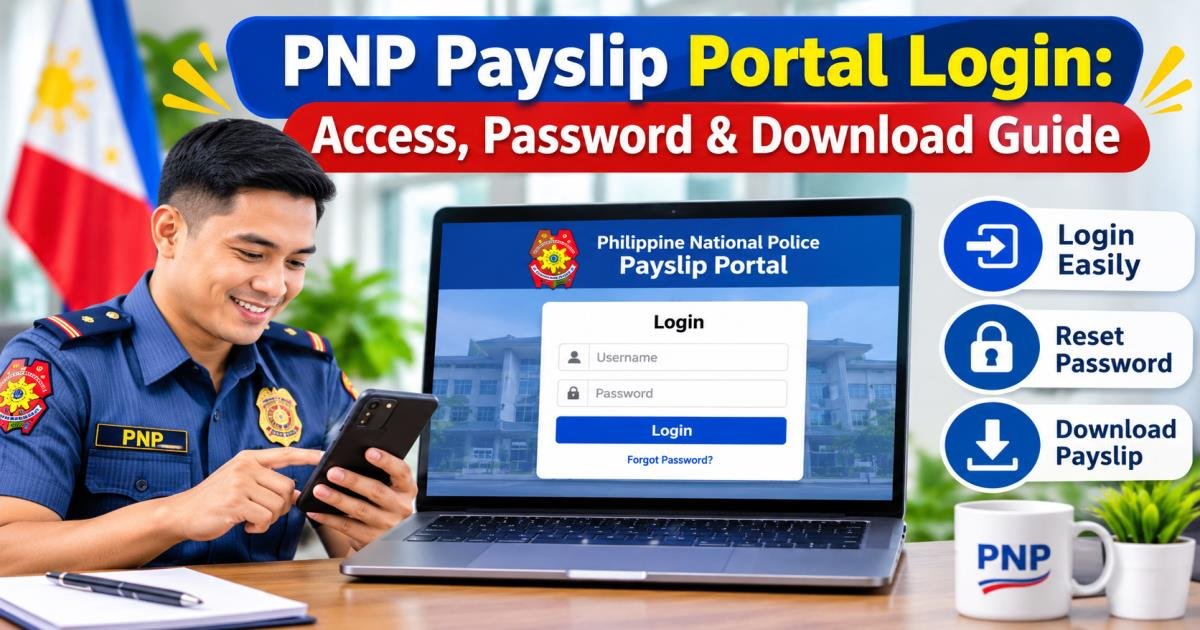
PNP Payslip Portal Login: Access, Password & Download Guide
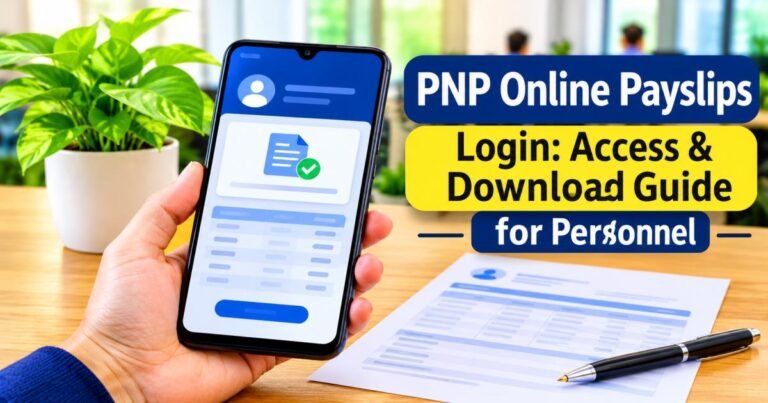
To complete your PNP payslip portal login, open the official Philippine National Police Online Payslip Portal at payslip.pnppms.org (or follow the verified link on the PNP Finance Service website at fs.pnp.gov.ph), enter your PNP ID number and account password, complete the CAPTCHA security check, and click Sign In. Once your dashboard loads, you can immediately view, download, or print your monthly pay statement.
Police personnel across the Philippines rely on accurate, timely payroll records for loan applications, tax verification, and household budgeting. Whether you serve as an active officer, work as a civilian employee, or research public-sector payroll operations, this guide covers every step of portal access, credential recovery, mobile browsing, and PDF downloads.
What Is the PNP Payslip Portal?
Purpose of the Philippine National Police Online Payslip System
The PNP Online Payslip System is a centralized web portal managed by the PNP Finance Service (FS) and its Financial Information Management Division (FIMD). Years ago, physical pay stubs traveled by courier from Camp Crame to regional headquarters and municipal police stations, often arriving weeks late or getting lost in transit. Moving pay statements online gives every member of the force direct, self-service access to monthly earnings records the moment payroll posts.
Who Can Access the PNP Payslip Portal?
Only active personnel listed on the official Philippine National Police payroll roster can sign in to the system:
- Uniformed Personnel: Commissioned officers and non-commissioned officers assigned to national support units and police regional offices.
- Non-Uniformed Personnel (NUP): Civilian employees working in administrative, technical, and operational support roles across the PNP.
- Newly Inducted Recruits: New patrolmen, patrolwomen, and civilian hires whose appointment orders, Tax Identification Numbers (TIN), and LandBank payroll accounts have been processed in the Finance Service database.
What Information Does a PNP Payslip Contain?
Each electronic statement serves as an official record of your monthly compensation. It lists your full name, rank, PNP ID number, unit assignment, 16-digit LandBank payroll account number, itemized base pay, statutory allowances, government deductions, loan amortizations, and final net take-home pay. Generated statements also display a verification QR code that banks and accredited lenders scan to confirm authenticity.
Benefits of Accessing Payslips Online
Checking your payroll online replaces paper queues with practical everyday advantages:
- Round-the-Clock Access: View your earnings anytime from a desktop computer or smartphone.
- Fast Loan and Visa Documentation: Housing lenders, banks, and foreign embassies typically ask for three to six months of recent pay slips. You can pull archived PDFs in seconds.
- Early Error Detection: Checking your itemized deductions every month helps you catch unauthorized loan billings or uncredited allowances before they snowball.
- Zero Processing Fees: Viewing and saving statements through the official portal costs nothing.
PNP Payslip Portal Login Philippines: Official Access Guide
How to Find the Correct PNP Payslip Login Page
Phishing sites often mimic government login screens to steal employee passwords. For a safe PNP payslip portal login Philippines session, type [https://payslip.pnppms.org](https://payslip.pnppms.org) directly into your browser’s address bar, or click the official portal link posted on verified .gov.ph domains such as fs.pnp.gov.ph.
Information Required Before Logging In
Gather these details before opening the sign-in screen:
- PNP ID Number or Registered Email: Your unique personnel identifier issued by the Philippine National Police.
- Account Password: Your personal case-sensitive portal password.
- Registered Email Address: Required if you need to receive a verification code or reset forgotten credentials.
- Authenticator Code (If Enabled): A six-digit code from your authenticator app if you turned on two-factor authentication.
Step-by-Step PNP Payslip Portal Login Process
- Open Chrome, Firefox, Edge, or Safari and go to [https://payslip.pnppms.org](https://payslip.pnppms.org).
- Check the browser address bar for the padlock icon to confirm an encrypted HTTPS connection.
- Type your PNP ID number (or registered email address) into the username box.
- Enter your password carefully into the password field.
- Solve the CAPTCHA prompt to verify your session.
- Click Login or Sign In to open your payroll dashboard.
How to Recognize the Correct Payslip Portal
A legitimate login page shows official Philippine National Police and Finance Service branding, loads over HTTPS, includes a CAPTCHA verification box, and never asks for your LandBank ATM PIN, card number, or banking one-time passwords (OTPs). Ignore sponsored search ads or shortened links shared in unofficial group chats.
Difference Between PNP Payslip and PNP Online PAIS
Personnel sometimes confuse the PNP Online Payslip Portal with the PNP Online Personnel Accounting and Information System (PAIS) (pais.pnp.gov.ph). Both platforms serve PNP members, yet they handle completely different records:
| Feature | PNP Online Payslip Portal | PNP Online PAIS |
| Primary Purpose | Monthly pay statements, allowances, and deduction records | Human resource files, unit assignments, training, and service history |
| Managing Office | PNP Finance Service (FS) / FIMD | Directorate for Personnel and Records Management (DPRM) |
| Main Documents | Monthly e-Payslips and annual tax summaries (BIR Form 2316 references) | Personal Data Sheets (PDS), reassignment orders, and leave balances |
| Account Login | Separate Finance Service payroll credentials | Dedicated PAIS HR portal credentials |
How to Register for a PNP Payslip Portal Account
Account Eligibility and Requirements
Your personnel profile must already exist in the active PNP payroll database before you can create an online account. New recruits typically wait one to two pay cycles after oath-taking while their appointment orders, TIN, and LandBank payroll details finish encoding at their Regional Finance Service Office (RFSO). Have your valid PNP ID number, exact payroll name spelling, birth date, and an active personal email address ready.
How First-Time Users Can Get Portal Access
- Go to payslip.pnppms.org and click Register or Sign Up below the login boxes.
- Enter your PNP ID number, full name, date of birth, and an active email address you check daily.
- Choose a strong password mixing uppercase letters, lowercase letters, numbers, and symbols.
- Submit the form and open your email inbox.
- Open the activation email from the PNP Payslip system (check your Spam folder if it takes more than five minutes) and click the verification link.
- Return to the sign-in screen and log in with your activated account.
What to Do If Your Account Is Not Registered
If the registration form says your PNP ID cannot be found, the web server has not yet synced your new payroll record. Do not submit multiple registration forms with altered name spellings. Ask your unit administrative clerk or finance PNCO to confirm that your payroll profile has been transmitted to the Finance Service.
Where to Get Registration Assistance
When self-registration fails for an active payroll member, visit or contact your Unit Finance Officer, your Regional Finance Service Office (RFSO), or the Financial Information Management Division (FIMD) helpdesk at Camp BGen Rafael T. Crame. Bring a front-and-back photocopy of your PNP ID so staff can verify your database record and activate your account.
PNP Payslip Portal Login Password: How to Access Your Account
Understanding Your PNP Login Credentials
Your PNP payslip portal login password pairs with your unique PNP ID to guard confidential income and loan data. A common mistake among personnel is typing their badge number instead of their PNP ID number. While badge numbers can change across ranks or assignments, your PNP ID stays permanently linked to your Finance Service payroll profile.
How to Enter Your Username and Password Correctly
Portal passwords are strictly case-sensitive. Check that your keyboard’s Caps Lock key is off and remove any accidental spaces at the beginning or end of copied text. If your browser autofills an older saved password, clear the field and type your current password manually.
What to Do When Your Login Details Are Not Working
Stop after two or three failed login attempts. Entering wrong credentials repeatedly triggers an automatic security lockout that lasts about 30 minutes to block automated password guessing. Wait for the cooldown timer to expire, confirm you are typing your PNP ID rather than your badge number, and try again. If your password still fails, reset it right away.
Tips for Keeping Your Account Secure
- Turn On Two-Factor Authentication (2FA): Link your account to an app like Google Authenticator so every login requires a fresh six-digit code.
- Never Share Passwords with Lending Agents: Private loan agents sometimes ask for portal logins to verify net pay. Never hand over your password—download a PDF payslip and send the file instead.
- Pick a Separate Password: Avoid reusing passwords from your personal email, social media, or banking apps.
PNP Payslip Portal Login Password Forgot: How to Reset It
What to Do If You Forget Your PNP Payslip Password
If you hit a PNP payslip portal login password forgot roadblock, use the portal’s built-in recovery tool instead of guessing passwords and locking your profile. Provided you still have access to your registered email inbox, you can restore access in under five minutes.
Step-by-Step Official Password Reset Procedure
- Open payslip.pnppms.org and click Forgot Password beneath the password box.
- Enter your registered email address (and PNP ID if requested).
- Complete the CAPTCHA challenge and click Submit.
- Open your email inbox and find the password reset message from the PNP Online Payslip system.
- Click the reset link before it expires.
- Type a new strong password, confirm it, and click Save.
- Return to the main login screen and sign in with your new password.
Documents and Identification Required for Password Recovery
If you cannot use self-service email recovery and must request a manual reset from Finance Service staff, prepare these items:
- Front-and-back photocopy of your valid PNP ID signed with three specimen signatures.
- Signed Request Letter listing your full name, rank, PNP ID number, current unit, mobile number, and active email address.
- Latest Appointment or Reassignment Order (if your name or unit status changed recently).
How to Get a Temporary Password from PNP Finance Service
Finance Service administrators verify every manual reset request to stop unauthorized access to employee pay records. After your RFSO or FIMD staff validate your signed letter and PNP ID copy, they issue a temporary password to your verified email or unit finance liaison. Sign in immediately upon receiving that temporary code and replace it with a private password.
What to Do If You Cannot Access Your Registered Email
If you registered with an old email address you can no longer open—or mistyped your email during signup—automated reset links will never reach you. Contact your Unit Finance PNCO or visit your nearest Regional Finance Service Office with your PNP ID. Ask an administrator to update the email address tied to your PNP ID. Once updated, run the standard Forgot Password steps.
Who to Contact for Additional Password Assistance
Follow this chain of support for unresolved credential problems:
- Your Unit Administrative or Finance PNCO.
- Your Regional Finance Service Office (RFSO) IT and Payroll helpdesk.
- The Financial Information Management Division (FIMD) at PNP Finance Service Headquarters, Camp Crame.
PNP Payslip Portal Login App: Can You Access It on Mobile?
Is There an Official PNP Payslip Mobile App?
Personnel frequently search the Google Play Store and Apple App Store for a PNP payslip portal login app or PNP payslip portal login Philippines app. Right now, the Philippine National Police does not publish a standalone mobile app on public app stores. Instead, the portal runs as a mobile-friendly website inside your phone’s browser. Avoid third-party APK downloads: any unofficial app claiming to offer PNP payslip access can steal your login credentials and bank details.
How to Access the Payslip Portal Using an Android Phone
You can save the official website directly to your Android home screen so it opens just like an app:
- Open Google Chrome on your Android phone.
- Go to [https://payslip.pnppms.org](https://payslip.pnppms.org).
- Tap the three-dot menu in the top-right corner.
- Select Add to Home screen (or Install app).
- Label the shortcut PNP Payslip and tap Add.
How to Access the Portal Using an iPhone
iPhone and iPad users can create a home screen shortcut through Safari:
- Open Safari and navigate to [https://payslip.pnppms.org](https://payslip.pnppms.org).
- Tap the Share button (the square with an upward arrow) at the bottom of your screen.
- Scroll down and tap Add to Home Screen.
- Confirm the shortcut name and tap Add in the top-right corner.
Mobile Browser vs. Dedicated Mobile Application
Opening the portal in Chrome or Safari keeps your device safer than installing unverified apps. Mobile browsers update security certificates automatically, block malicious scripts, and never ask for permission to read your SMS messages, contacts, or photos.
Tips for Safe Mobile Payslip Access
- Use your personal mobile data rather than public Wi-Fi in cafes, malls, or terminals when viewing salary details.
- Tap Log Out inside the portal before closing your browser tab.
- Turn off browser password autofill on phones or tablets shared with family members.
PNP Payslip Portal Login Download: How to Save Your Payslip
How to View Your Monthly PNP Payslip
After signing in to your dashboard, select the Payslip, e-Payslip, or Payroll History tab in the main menu. Pick the year and month you want to review. The page displays your complete earnings and deductions breakdown for that pay period.
Step-by-Step Guide to Download a Payslip
Completing a PNP payslip portal login download takes just a few clicks once your statement loads on screen:
- Open the specific monthly payslip you wish to save.
- Check that the pay month, rank, and net pay figures appear properly.
- Click the Download, Export, or Print / Save PDF button on the statement page.
- Choose a secure folder on your computer or phone and confirm the download.
How to Save a Payslip as a PDF
If clicking Print opens a browser print preview instead of downloading automatically, save the document as a PDF manually:
- Press Ctrl + P on Windows or Cmd + P on Mac (on mobile, tap Share > Print).
- Change the Destination or Printer option to Save as PDF (or Microsoft Print to PDF).
- Keep the layout set to Portrait with Default margins so columns align cleanly.
- Click Save and name the file clearly (such as PNP-Payslip-October-2026.pdf).
How to Print Your Payslip
When banks, Pag-IBIG branches, or unit offices require hard copies, print your downloaded PDF on clean A4 or Letter bond paper. Make sure your PNP ID, net pay total, and verification QR code print sharply without cut-off edges.
How to Email a Payslip for Personal Reference
Attach the downloaded PDF file directly to your email message instead of copying a browser URL, as logged-in portal links will not open for external recipients. Double-check the recipient’s official domain before sending financial documents to any lender or embassy.
How to Access Previous Months’ Payslips
The online portal stores past statements across previous months and calendar years. Open the Payslip section, change the Month and Year dropdown selectors to any earlier pay period, and download each statement individually.
Understanding the Information on Your PNP Payslip
Basic Salary and Gross Earnings
Your Base Pay (Basic Salary) sits at the top of the earnings section and reflects your rank under the Philippine government’s military and uniformed personnel compensation schedule. Any Longevity Pay (Long Pay) accrued for every five years of active service appears alongside base pay to establish your primary earnings.
Allowances and Additional Compensation
Depending on your rank, unit, and operational role, your statement lists specific recurring allowances:
- PERA (Personnel Economic Relief Allowance): A standard monthly allowance provided to eligible government workers.
- Subsistence Allowance: Daily meal allowance computed across the calendar days of the month.
- Clothing and Quarter Allowances: Standard uniform and housing allowances matched to your rank.
- Hazard Pay and Combat Pay: Extra compensation for personnel serving in operational or high-risk field assignments.
- Specialist, Flying, or Sea Duty Pay: Additional pay for certified technical, aviation, or maritime personnel.
Mandatory Contributions and Other Deductions
Statutory deductions mandated by Philippine law appear in the deductions column:
- Withholding Tax: Monthly income tax calculated under current Bureau of Internal Revenue (BIR) rules.
- PhilHealth: Monthly national health insurance contribution.
- Pag-IBIG Fund (HDMF): Mandatory monthly housing and provident savings share.
- Institutional Insurance: Authorized benefit deductions such as PSMBFI contributions.
Loan Payments and Other Salary Deductions
Active loans with government agencies (such as Pag-IBIG Multi-Purpose Loans) or accredited lenders (AFPSLAI, PSSLAI, AMWSLAI, and partner banks) appear under Deductions. Each line lists the lender code and the exact peso amount deducted for that month.
Net Salary and Take-Home Pay
Your Net Pay equals Total Gross Earnings minus Total Deductions. Under Philippine General Appropriations Act (GAA) rules, government personnel must retain a statutory minimum net take-home pay each month. New private loan deductions cannot be billed through payroll if they drop your take-home pay below that legal floor.
How to Identify Possible Payroll Errors
Inspect your statement line by line every payday and watch for three common issues:
- Expired Loans Still Deducting: Monthly amortizations that continue after your final scheduled payment date.
- Missing Allowances: Approved hazard, specialist, or longevity pay adjustments that failed to post.
- Unfamiliar Lender Codes: Deductions from a financing company you never signed up with.
If you spot a discrepancy, print the payslip and file a formal adjustment or billing stoppage request with a signed letter and PNP ID photocopy at your RFSO or the Finance Service Revenue and Collection Division.
Common PNP Payslip Portal Login Problems and Solutions
| Problem | Common Cause | Quick Fix |
| Incorrect Username or Password | Typing badge number instead of PNP ID, or Caps Lock is on | Enter your exact PNP ID number, turn off Caps Lock, and retype your password |
| Account Temporarily Locked | Three or more consecutive failed sign-in attempts | Wait 30 minutes for the automatic security lock to reset before trying again |
| Portal Slow or Not Loading | Heavy traffic on payday (15th or 30th) or routine server updates | Refresh after a few minutes or sign in during off-peak hours (early morning or late night) |
| Payslip Missing from Dashboard | Current month’s payroll batch is still uploading | Check back 24 to 48 hours after payroll release, or confirm roster status with your unit finance clerk |
| PDF Fails to Download on Phone | Mobile browser pop-up blocker stopped the PDF viewer | Allow pop-ups for payslip.pnppms.org or use your browser’s Print-to-PDF option |
| CAPTCHA Keeps Rejecting | Expired page token or weak mobile data signal | Reload the entire login page so a fresh CAPTCHA loads before entering your credentials |
PNP Payslip Portal Security and Privacy Tips
How to Protect Your Login Credentials
Guard your portal password just like an online banking PIN. Save it inside a trusted password manager instead of writing it on paper in your wallet or storing it in plain text notes. Update your password every three to six months, especially if you ever signed in on a shared office workstation.
Why You Should Avoid Unofficial Login Websites
Fake login pages often use lookalike web addresses to harvest government employee logins. Always verify payslip.pnppms.org in your address bar or enter through official .gov.ph pages. Never click login links arriving via unsolicited text messages or unverified social media pages.
Safe Ways to Download and Store Payslips
Your payslip displays sensitive personal data, including your PNP ID, TIN, unit assignment, and 16-digit payroll account number. Never leave downloaded PDFs on public computers at internet cafes or print shops. If you must print outside your office, save the PDF to your own USB flash drive, watch the print job finish, and delete any temporary copies from the shop computer. Keep personal copies inside a password-protected folder on your own device.
What to Do If You Suspect Unauthorized Account Access
If you spot unfamiliar login timestamps, an altered recovery email, or unauthorized profile changes, reset your password immediately through the Forgot Password tool. Report the breach to your Regional Finance Service Office and the PNP Anti-Cybercrime Group (ACG) so technicians can audit and secure your account.
PNP Payslip Portal Login Support and Contact Information
PNP Finance Service Assistance
The PNP Finance Service (FS), based at Camp BGen Rafael T. Crame in Quezon City, directs salary disbursements, tax reporting, and online payslip operations across the entire police force. Official advisories, downloadable forms, and helpdesk notices appear on fs.pnp.gov.ph.
Financial Information Management Division (FIMD)
Operating under the PNP Finance Service, the Financial Information Management Division (FIMD) maintains the payroll servers, monthly batch uploads, and backend portal database. Regional offices escalate technical database errors and missing payroll profiles directly to FIMD engineers.
Regional Finance Service Offices (RFSOs)
Personnel stationed outside Camp Crame can resolve most account issues locally. Every Police Regional Office operates a Regional Finance Service Office (RFSO) that verifies PNP IDs, processes email updates, accepts loan stoppage requests, and assists with manual password resets.
When to Contact Your Unit Finance or Administrative Office
Check with your Unit Finance PNCO or Administrative Officer first when:
- You recently graduated or transferred and need to confirm your active payroll roster status.
- You forgot which personal email address you linked during initial signup.
- You need an official unit endorsement for an allowance claim or deduction dispute.
Final Thoughts on PNP Payslip Portal Login
Keeping track of your PNP payslip portal login puts your complete compensation history at your fingertips without waiting on paper dispatches. Bookmark payslip.pnppms.org, keep your PNP ID and recovery email current, and save monthly PDF copies in a secure folder so you always have verified income records ready whenever you need them.
Frequently Asked Questions About PNP Payslip Portal Login
What Is the Official PNP Payslip Portal?
The official portal for viewing Philippine National Police electronic pay statements is payslip.pnppms.org, operated by the PNP Finance Service (FS) and linked through official .gov.ph PNP websites.
How Do I Log In to the PNP Payslip Portal?
Open payslip.pnppms.org in a secure browser, type your PNP ID number (or registered email address) and password, complete the CAPTCHA verification, and click Login to view your dashboard.
How Can I Reset My Forgotten PNP Payslip Password?
Click Forgot Password on the login page, enter your registered email address, open the reset link sent to your inbox, and set a new password. If you lost access to that email, submit a signed request letter and a photocopy of your PNP ID to your Regional Finance Service Office (RFSO).
Can I Access My PNP Payslip Without a Password?
No. Every user must sign in with a registered PNP ID and personal password before viewing or downloading salary statements to protect confidential payroll data.
Is There a PNP Payslip Portal Login App?
No, there is no official standalone mobile app on the Google Play Store or Apple App Store. Android and iPhone users should visit payslip.pnppms.org in Chrome or Safari and save a shortcut to their home screen for one-tap access.