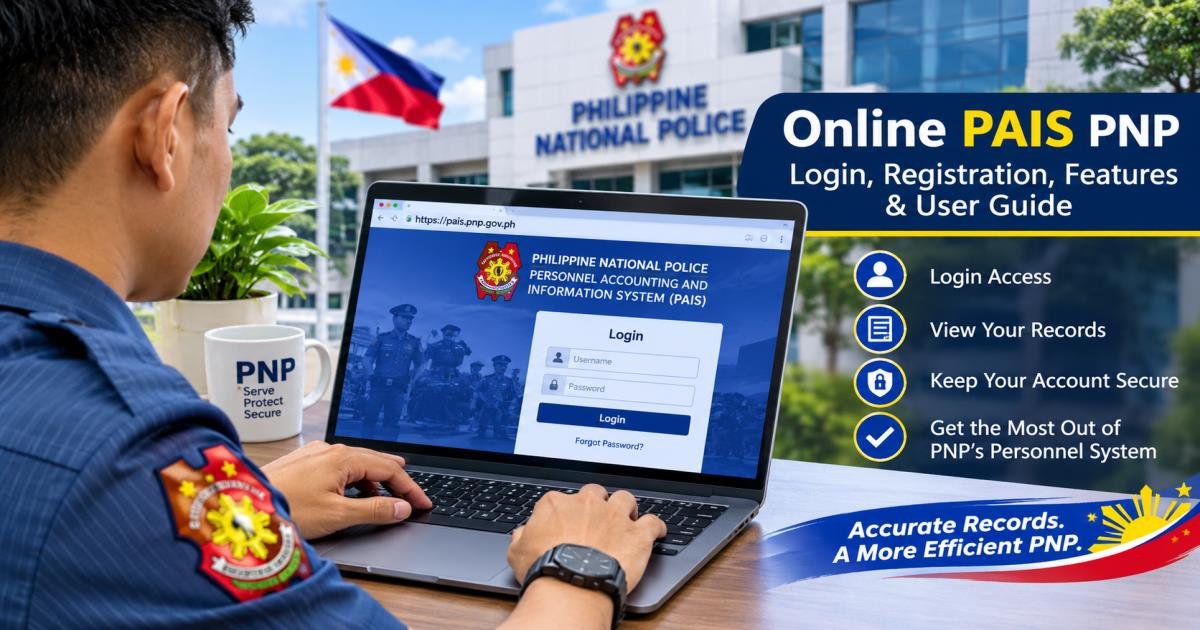
Online PAIS PNP: Login, Registration, Features & User Guide
The online pais pnp system serves as the official administrative database for the Philippine National Police. It stores, manages, and updates service histories, personal data sheets, unit assignments, and rank progression records for active police officers, non-uniformed personnel (NUP), and retirees across the Philippines.
What Is Online PAIS PNP?
Meaning and Full Form of PAIS
PAIS stands for Personnel Accounting and Information System. Within the Philippine National Police (PNP), it operates as the central record-keeping network for human resource management.
Overview of the Philippine National Police Personnel Accounting and Information System
The PNP manages more than 220,000 active uniformed personnel and thousands of civilian employees across 17 regional offices and hundreds of municipal precincts. The web system acts as a central repository where every personnel entry—from initial appointment orders to retirement clearances—is recorded in a single database.
Why the PNP Developed the System
Before building this digital database, local administrative desks tracked personnel using physical paper folders called 201 files. Paper storage regularly created delays during promotions, assignments, or transfers between precincts. The PNP created this online portal to clear administrative backlogs, stop record loss, and speed up identity checks across regional commands. Administrative officers now use a three-stage validation workflow to verify changes before updating master profiles permanently.
Who Can Use the Online PAIS Platform?
System access is restricted to authorized personnel:
- Active Uniformed Personnel (from Patrolman or Patrolwoman up to Police General)
- Non-Uniformed Personnel (NUP) working in PNP offices
- Retired officers checking records for pension processing
- Unit Administrative and Personnel Officers (RPHRDD / ARMD desks)
Difference Between PAIS and OPAIS
The term PAIS refers to the overall database structure and policy managed by the Directorate for Personnel and Records Management (DPRM). OPAIS refers to the web interface accessible at official address portals like online.pais.pnp.gov.ph or pais.pnp.gov.ph, allowing authorized personnel to log in remotely using a web browser.
What Is the Purpose of the PNP Online PAIS System?
Centralized Personnel Information Management
The portal stores official employee data on secure government servers. This practice eliminates fragmented paper files scattered across different regional precincts.
Maintaining Accurate Employee Records
Officers update their contact information, blood types, emergency contacts, residential addresses, and civil status directly inside their profiles. This setup ensures unit commanders hold accurate details for emergency notices and administrative actions.
Supporting Personnel Administration
The DPRM uses system data to calculate active unit strength, organize duty shifts, and plan force deployment during national events or security operations.
Helping with Promotions, Assignments, and Official Personnel Actions
Promotions require complete file checks. When an officer applies for a higher rank, promotion boards verify service histories, mandatory training courses, and eligibility records directly from the database entries.
Improving Access to Personnel Information
Individual access lets personnel confirm official orders directly from their personal screens. Officers no longer need to travel to regional headquarters just to check if an assignment order or commendation appears on their permanent file.
Online PAIS PNP Login: How to Access the Official Portal
Official PNP PAIS Portal Address
To protect personal information from scam sites, users must navigate directly to official government addresses:
- Main Portal: online.pais.pnp.gov.ph
- Secondary Portal Address: pais.pnp.gov.ph
Step-by-Step Login Instructions
- Open a secure web browser on a computer or smartphone.
- Type online.pais.pnp.gov.ph into the browser address bar.
- Locate the online pais pnp login box on the main landing page.
- Enter your registered account username or official PNP email address.
- Type your secure online pais pnp login password.
- Complete any active security CAPTCHA test shown on screen.
Required Login Credentials
To complete your login successfully, you must enter:
- Username: Official PNP email address (@pnp.gov.ph) or assigned Badge Number.
- Password: Personal account password set during initial account setup.
Accessing the Portal from a Computer or Smartphone
The portal displays properly on desktop computers, laptops, tablets, and smartphones. Standard web browsers such as Google Chrome, Mozilla Firefox, Microsoft Edge, and Safari handle all profile functions without requiring special add-ons.
What to Do After Successfully Logging In
- Check your rank, badge number, and current unit assignment on your main profile view.
- Read new announcements sent by DPRM or your local unit administrative desk.
- Log out completely after finishing your work, especially when using a shared precinct computer.
Online PAIS PNP Registration: Account Setup and Requirements
Who Is Eligible to Access PAIS?
Public self-registration is disabled. The system grants accounts only to:
- Active PNP Uniformed Officers
- Active Civilian Employees (NUP)
- Authorized PNP Retirees
Information and Documents That May Be Required
When establishing your profile through your unit personnel officer, you must provide:
- Official PNP ID Card or online pais pnp id details
- Official PNP Email Address (@pnp.gov.ph)
- Tax Identification Number (TIN)
- Completed Civil Service Commission Personal Data Sheet (PDS / CS Form 212)
- Official Appointment or Oath of Office documentation
How Authorized Personnel Can Request Account Access
New recruits and newly hired civilian employees receive login accounts during onboarding. If an active officer lacks an active profile:
- Report to your local unit Personnel Section (RPHRDD or ARMD).
- Submit a formal account request form.
- Present your official PNP Identification Card along with your original assignment order.
Role of the PNP Administrative or Personnel Office
To prevent unauthorized access, individual users cannot create public accounts online. Unit administrative officers verify your identity first, then create and enable your account profile in the central server. These administrative officers process all requests using the same three-stage validation workflow required for standard profile updates.
Account Activation and Verification
After your unit admin registers your details, an activation link arrives in your official PNP email. Click that link, enter the temporary security code, set your permanent password, and choose your account recovery questions.
Why Public Self-Registration May Not Be Available
Because the system stores confidential law enforcement rosters, deployment logs, and personal identity records, public registration forms are omitted to preserve server security.
Main Features of the Online PAIS PNP System
Personnel Information Management
The main database stores demographic details, skill qualifications, language skills, and emergency contact details for every active member of the police force.
Personal Data Sheet (PDS) Access
Officers can fill out, check, and print their Civil Service Commission (CSC) Personal Data Sheets directly from their profile dashboard.
Service Record Management
The portal tracks career progress from initial recruitment down to your present rank. It logs reassignment orders, commendations, mandatory course completions, and accumulated leave credits.
Personnel Information Updates
Personnel can submit request forms to edit residential addresses, record marriage status changes, add newly earned college degrees, or upload updated training certificates.
Record Verification and Validation
Administrative desks use the database to cross-check officer identity credentials, confirm active duty status, and verify service length during promotional evaluations.
Administrative Reporting and Personnel Data Management
Commanders generate statistical workforce reports, review staffing counts across Police Regional Offices (PROs), and organize personnel distributions when planning operations.
How to View and Update Your PNP Personnel Information
Accessing Personal Information
After logging into your account, click on the My Profile tab on the side navigation menu.
Checking Employment and Service Details
Review each section carefully:
- Personal Data: Spelling of full name, birthdate, blood type, and emergency contacts.
- Service Details: Rank title, Badge Number, primary unit placement, and date of last promotion.
- Education & Eligibility: Completed degrees, Civil Service exam ratings, or Board/Bar exam certifications.
- Training Logs: Mandatory training courses, such as the Field Training Program or Officer Candidate Course.
Reviewing Personal Data for Accuracy
Typographical errors in your birthdate or rank can delay promotion reviews, leave approvals, or pension calculations. Reviewing your profile details every three months helps prevent processing delays later.
Requesting Corrections to Incorrect Information
If you find inaccurate entries in locked profile fields:
- Click the Request Data Correction option on that record panel.
- Attach clear digital scans of official supporting documents (PSA Birth Certificate, Marriage Contract, or Special Orders).
- Select Submit to send your file to your administrative officer.
Contacting the Appropriate Personnel Office
If an edit request button is not visible on your screen, print a manual Correction Form. Bring your original documents to your unit’s Administrative or Personnel Section for manual review.
How to Access Your PNP Personal Data Sheet and Service Record
Understanding the Personal Data Sheet
The Personal Data Sheet (CS Form 212) is a mandatory document across all Philippine government offices. Inside the database, this form compiles your background details into a standardized digital format.
Viewing and Printing Available Personnel Records
- Log into your account on the online pais pnp gov ph portal.
- Select Documents -> Personal Data Sheet from your menu.
- Choose Preview Document to check all text blocks.
- Click Download PDF or Print to produce a physical copy for official filings.
Accessing Service Records Through the Personal Dashboard
To obtain a copy of your Service Record:
- Click on the Service History panel inside your document library.
- Check that past assignments, rank changes, and commendations appear in clear chronological order.
Important Information to Check Before Downloading
Before printing or submitting your documents:
- Confirm that your latest promotion order is listed.
- Check that recent training courses completed within the last 12 months appear on your list.
- Confirm your residential address and contact numbers reflect your current location.
When Official Authentication May Be Necessary
Downloaded computer prints work well for personal review. However, applications for promotion boards, retirement benefits, or official foreign travel require a certified true copy bearing an official ink seal from the DPRM Records Management Division.
Online PAIS PNP vs. PNP Online Payslip: What’s the Difference?
Personnel often confuse the PAIS database portal with the PNP Online Payslip portal. The table below outlines the specific operational differences between these two separate internal platforms:
| Comparison Feature | Online PAIS PNP (pais.pnp.gov.ph) | PNP Online Payslip Portal (payslip.pnp.gov.ph) |
| Main Purpose | Central Personnel Information & Service Records | Monthly Salary, Allowance, & Deduction Breakdown |
| Primary Use | Profiles, PDS, Service Records, Rank/Unit Tracking | Viewing/Downloading Monthly Payslips & Tax Records |
| Managed Function | Personnel & Human Resource Administration (DPRM) | Finance Service & Payroll Division (FS) |
| Intended Users | Active Officers, NUPs, & Retirees (Personnel Records) | Active Officers & Eligible NUPs (Payroll Accounts) |
| Primary Identifier | Badge Number / PAIS Account Number / PNP Email | Serial / Badge Number & Finance Account Credentials |
Common Online PAIS PNP Login Problems and Solutions
Incorrect Username or Password
- Cause: Typing mistakes, active Caps Lock, or auto-filled old passwords stored in browser memory.
- Solution: Retype your credentials manually. Turn off Caps Lock. Check for correct letter case when entering your password.
Account Access Denied
- Cause: Account locked after multiple incorrect entries, profile set to inactive status, or unverified unit reassignment.
- Solution: Contact your unit administrative officer to confirm your active status in the master roster.
Forgotten Login Credentials
- Solution: Click the Forgot Password? option located below the login box on the online pais pnp gov ph log in page. Enter your registered official PNP email address to receive a password reset link.
Account Activation Problems
- Solution: If an account activation link expires, ask your unit HR administrator to generate a new token sent to your official email.
Portal Not Loading
- Cause: Server maintenance, high traffic during promotion cycles, or temporary network drops.
- Solution: Clear your web browser cache and cookies, open an incognito window, or try logging in again after 30 minutes.
Browser Compatibility Issues
- Solution: Update your web browser to the latest version. Google Chrome, Microsoft Edge, and Mozilla Firefox offer consistent performance on government sites.
Incorrect or Outdated Personnel Information
- Solution: Submit an official change request through your user dashboard or bring paper copies of your orders to your unit administrative section.
When to Contact PNP Technical Support
If system errors block access for several days, report the issue to your RPHRDD IT Helpdesk or send an inquiry to the Information Technology Management Group (ITMG).
Is Online PAIS PNP Safe and Secure?
Official Portal Verification
Always check that your browser displays the exact official web address (online.pais.pnp.gov.ph or pais.pnp.gov.ph) alongside a padlock icon in the address bar before entering your login details.
Protecting Personnel Information
The portal stores confidential personal details and service files. Encrypted connection protocols protect transmitted data from external interception.
Password and Account Security
Maintain personal security by practicing standard safeguards:
- Create unique passwords using a combination of capital letters, lowercase letters, numbers, and symbols.
- Avoid using birthdates, rank titles, or badge numbers in your password.
- Change your account password every 90 days.
Avoiding Phishing Websites
Be cautious of unofficial third-party mobile apps, social media links, or external websites claiming to provide access to your profile. The PNP never asks for your password over text messages or social media channels.
Safe Access Through Personal Devices
Do not open your account on shared computers in internet cafes or unencrypted public Wi-Fi networks. If you must use a shared office terminal, log out completely and clear the browser history when finished.
Why Users Should Never Share Login Credentials
Sharing your login details violates administrative security rules. You remain accountable for any record entries, updates, or requests submitted under your account profile.
Benefits of Using the Online PAIS PNP System
- Easier Personnel Record Access: Personnel inspect their official records directly from any computer without filing paper forms.
- Improved Information Accuracy: Direct input and verification checks reduce data errors across national records.
- Better Administrative Efficiency: HR offices process promotion packets, reassignment orders, and clearances faster.
- Organized Personnel Documentation: Keeps PDS pages, training histories, and service details structured inside a searchable database.
- Faster Information Verification: Command channels verify officer credentials quickly during unit assignments or promotional board reviews.
- Support for Personnel Management Decisions: Provides leadership with real-time data regarding unit strength and national staffing needs.
Important Things to Know Before Using PNP Online PAIS
Eligibility and Authorized Access
Only active police personnel, authorized NUPs, and verified retirees may use this platform. Unauthorized access attempts on government systems violate Philippine laws, including the Cybercrime Prevention Act of 2012 (Republic Act No. 10175).
Internet and Device Requirements
A reliable internet connection, along with an updated browser on a phone or computer, ensures that PDF records export cleanly without missing sections.
Maintaining Accurate Personnel Information
Keeping your personal information up to date remains your personal duty. Ensure that new college degrees, specialized course certificates, or civil status changes are submitted for encoding as soon as you receive your official orders.
Understanding Administrative Permissions
Standard personnel accounts hold view and update-request permissions. Direct master edit access remains locked under designated administrative officers who verify submitted files using the standard three-stage validation workflow.
Following Official PNP Guidelines
Follow all administrative circulars issued by the Directorate for Personnel and Records Management (DPRM) regarding record submission dates, profile updates, and digital security rules.
Summary of PNP Online PAIS Access
The Personnel Accounting and Information System provides a structured, clear way to maintain human resource records across the Philippine National Police. By organizing service histories, Personal Data Sheets, and assignment details inside a central digital platform, the system simplifies administrative tracking for active officers, civilian staff, and retirees across all regional commands.
Make sure to log in to the official portal regularly to review your current files, verify your service details, and request updates whenever your assignment orders change. Keep your personal identity safe by protecting your user password and accessing system pages exclusively through official government domain links.
Frequently Asked Questions About Online PAIS PNP
What does PAIS mean in the Philippine National Police?
PAIS stands for Personnel Accounting and Information System. It is the central database used by the PNP to record, track, and manage the personal files, service histories, and administrative records of police officers and civilian staff.
What is the official Online PAIS PNP website?
The official web domains for accessing the portal are online.pais.pnp.gov.ph and pais.pnp.gov.ph. Always check that you are using an official .gov.ph web address before entering your login details.
Who can access the PNP PAIS portal?
Access is limited to active PNP uniformed personnel, civilian employees (NUP), registered retirees, and authorized unit personnel officers. The general public cannot access these internal administrative pages.
How do I log in to Online PAIS PNP?
Go to online.pais.pnp.gov.ph, enter your registered username (official PNP email or badge number), type your password, and click Log In.
Can new PNP personnel register for an account online?
No, direct public self-registration is disabled. New police officers and civilian staff receive their account credentials through their unit’s administrative officer (RPHRDD or ARMD) during their initial onboarding process.