PNP Online Payslips Login Password: Reset & Download Guide
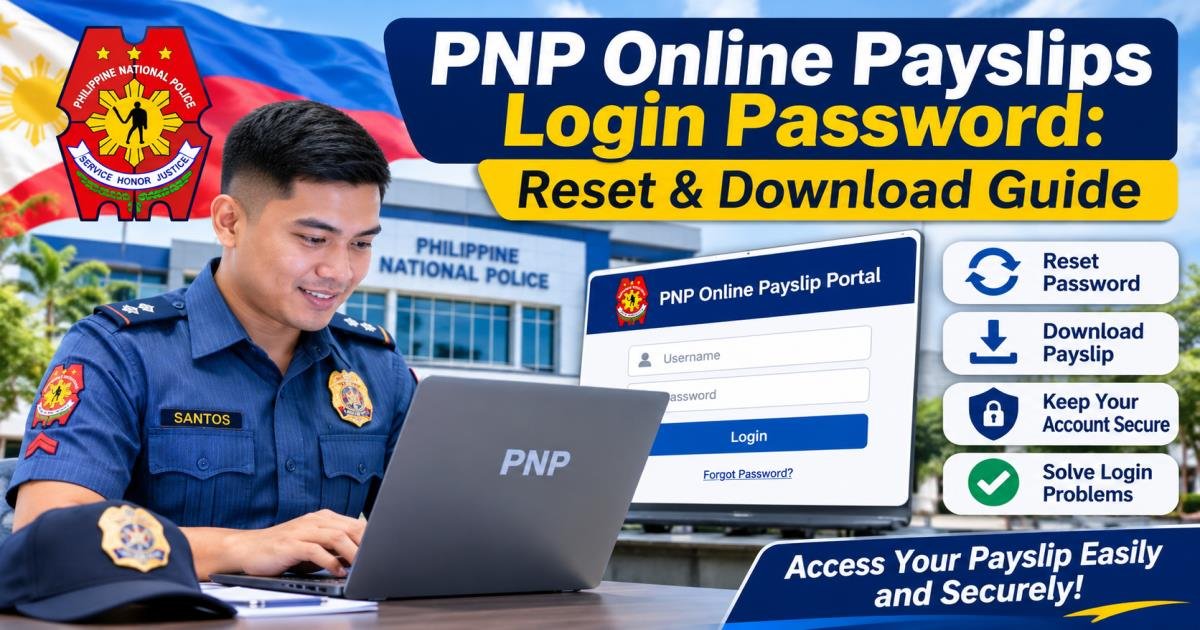
To reset your pnp online payslips login password, open the official PNP payslip portal at payslip.pnppms.org, select the Forgot Password option, type your registered email address or PNP ID number, and open the recovery link sent to your inbox. Create a strong replacement password, sign back into your account dashboard, open the e-Payslip section, choose your preferred salary period, and save your official statement as a PDF file. If you forgot your password and no longer have access to your registered email address, you cannot complete an online reset; you must contact your local police unit finance officer to update your official contact details and restore account access.
What is the PNP Online Payslip System?
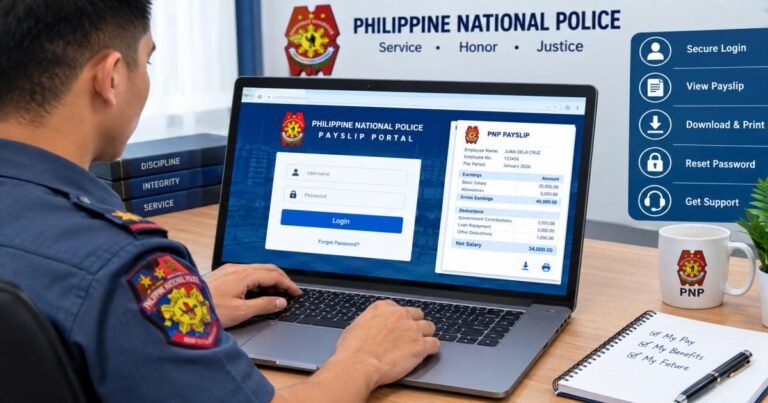
The Philippine National Police (PNP) Online Payslip system serves as a central digital platform managed by the PNP Finance Service and the Directorate for Personnel and Records Management (DPRM). The portal gives active police officers and non-uniformed personnel (NUP) direct access to monthly compensation records, breakdown summaries, loan deductions, and net take-home pay.
Who Can Access the Portal?
Active-duty police officers and civilian employees whose payroll records exist in the central PNP Finance Service database can view their records through this site. Retired personnel and former employees cannot draw monthly digital statements directly from this portal; retired officers must process historical record requests through the PNP Retirement and Benefits Administration Service (PRBS) or their regional finance office.
Main Features for PNP Personnel
- Direct Web Access: Officers can view salary details 24 hours a day from any internet-connected computer or smartphone.
- Document Authenticity: Every downloaded PDF features verifiable digital markers and official formatting accepted by banking institutions for loan applications.
- Historical Payroll Archives: Personnel can review past monthly records without visiting physical camp administrative offices.
- Paperless Record Keeping: Digital distribution speeds up access and removes physical printing delays across distant regional police offices.
Difference Between PNP Online Payslip and PNP Online PAIS
Active officers rely on two separate online portals for their administrative needs:
| Feature | PNP Online Payslip Portal | PNP Online PAIS |
| Primary Focus | Financial statements, monthly allowances, loan deductions, net pay | Personnel data sheets, assignment history, promotion records |
| Managing Department | PNP Finance Service | Directorate for Personnel and Records Management (DPRM) |
| Primary Identifier | PNP ID / Account Number | PNP ID / Badge Number / Service Number |
| Main Output | Monthly e-Payslip PDF downloads | Official service records, personal data sheet (PDS) printouts |
How to Access the PNP Online Payslip Login Portal
Where to Find the Official Login Page
Open your web browser and type payslip.pnppms.org directly into the address bar. Check the URL bar to verify you are on a genuine government server before typing any sensitive account details. Never follow unverified social media links or search engine advertisements claiming to offer direct payslip downloads.
Information Required Before Signing In
Gather these details before starting the sign-in process:
- Official PNP ID number or registered username
- Account password
- Active access to your registered email inbox
Step-by-Step Account Sign-In
- Navigate to payslip.pnppms.org in your browser.
- Enter your PNP ID number into the username field.
- Type your pnp online payslips login password.
- Complete the security CAPTCHA code shown on screen.
- Select Login to open your personnel dashboard.
Important Account Security Precautions
- Avoid saving your password on shared office computers or public internet cafe devices.
- Confirm that your browser displays a secure HTTPS connection icon next to the web address.
- Click the sign-out button and close your browser window after completing your download.
How to Reset PNP Online Payslips Login Password
When Should You Reset Your Password?
- You see an incorrect credential warning after entering your standard login details.
- You suspect someone else attempted to sign into your account.
- You have not opened the portal for several months and cannot recall your passcode.
- You want to update your security credentials as part of regular account maintenance.
Step-by-Step Password Recovery Process
- Go to the home page at payslip.pnppms.org.
- Select the Forgot Password link beneath the main entry fields.
- Type the registered email address tied to your official personnel file.
- Select Submit to trigger an automated password recovery message.
Following the Official Reset Instructions
- Open your personal email inbox in a separate browser tab.
- Open the automated account message sent by the PNP system. Look in your Spam or Junk folder if the message does not show up in your main inbox within five minutes.
- Select the single-use reset link inside the email. Reset links expire after a short period to protect your security.
Handling a Temporary Password
When the system generates a temporary security string instead of a direct link, enter that temporary string alongside your PNP ID on the sign-in screen. The system will prompt you to create a replacement password before granting access to your main portal dashboard.
Creating a Strong Replacement Password
- Build a password containing at least 8 to 12 characters.
- Mix uppercase letters, lowercase letters, numbers, and allowed special characters (such as #, $, or @).
- Do not use easy-to-guess information like your birth date, badge number, rank, or unit name.
- Keep your new credentials stored in a password manager or secure physical file.
PNP Online Payslips Login Password Forgot Without Email: What to Do?
Recovering Your Password Without Registered Email Access
You cannot complete an online account recovery if you no longer control your registered email address. The self-service portal disables online email updates to block unauthorized users from taking over active officer accounts.
Contacting the PNP Finance Service for Help
When you cannot access your registered email account, follow official administrative channels to restore your file:
- Visit your Police Regional Office (PRO) Finance Division, Regional Mobile Force Battalion (RMFB) Finance Section, or local District Finance Unit.
- Reach out to the PNP Finance Service helpdesk located at Camp Crame for complex record updates.
Required Documents for Identity Verification
Present these items to your assigned finance officer to prove your identity:
- Valid PNP Identification Card (Active Duty ID)
- Secondary government photo ID (such as a Driver’s License, Passport, or UMID)
- Written endorsement from your immediate unit administrative or personnel officer
- A fresh, active email address to replace the outdated address on your file
Requesting Administrative Account Restoration
Once your finance officer verifies your service record, they will update your contact email in the central database or trigger an administrative credential reset. After the finance staff saves your updated details, you can use the standard online reset tool or log in with your administrator-issued temporary password.
Why Identity Verification Remains Mandatory
Your pay records hold sensitive personal details, loan schedules, tax numbers, and bank account figures. Requiring physical identity checks before changing account contact details prevents identity theft, financial leaks, and unauthorized record access.
How to Download PNP Online Payslip After Login
1. Sign In to Your Authorized Account
Log in at payslip.pnppms.org using your PNP ID number and valid password.
2. Locate the Payslip Menu
Find the navigation bar on your screen dashboard and choose Payslip or e-Payslip.
3. Select the Salary Period
Pick the specific month and year you need from the drop-down menu choices.
4. View and Generate the Statement
Select View Payslip to check your financial breakdown on screen, then click the Download icon.
5. Save or Print Your PDF Document
Save the downloaded PDF file inside a secure folder on your device. If you need a hard copy for official verification, open the document in a standard PDF viewer and print it out.
6. Accessing Past Payslips
The online system stores historical salary records from previous payroll cycles. Adjust the date filters in the e-Payslip tab to retrieve and save older statements whenever you need them for bank applications or personal record keeping.
Common PNP Online Payslip Login Problems and Solutions
Incorrect Username or Password
- Cause: Keyboard typos, active Caps Lock key, or typing a badge number instead of your official PNP ID.
- Solution: Turn off Caps Lock, check your PNP ID number format, and type your password carefully.
Forgotten Account Credentials
- Cause: Long gaps between portal logins.
- Solution: Select the Forgot Password link on the main portal page to begin standard account recovery.
Account Record Not Recognized
- Cause: Unregistered personnel profiles or newly recruited personnel whose data has not finished syncing with the Finance Service database.
- Solution: Check your registration status with your unit administrative officer or complete initial portal enrollment.
Failed Password Reset Requests
- Cause: Expired email reset links or local inbox filter blocks.
- Solution: Submit a new password reset request and check your Spam or Junk folder immediately.
Rejected Temporary Passwords
- Cause: Expired sessions or accidental spaces added while copying characters.
- Solution: Type the temporary password manually instead of copy-pasting, and create your replacement password right away.
Missing Payslip Information
- Cause: Active monthly payroll updates or temporary server database maintenance.
- Solution: Wait for scheduled administrative updates to finish or try checking your account again during off-peak hours.
Website Loading Errors
- Cause: Heavy visitor traffic on the server or outdated browser cache files.
- Solution: Clear your browser history and cache files, try a different browser, or open the page again after 15 to 30 minutes.
How to Keep Your PNP Payslip Account Secure
Create Unique Credentials
Do not re-use the password from your social media profiles or personal email accounts. Build a distinct credential set specifically for your police payroll access.
Protect Your Sign-In Details
Keep your login credentials private. Never share your password, account details, or PNP ID with colleagues or external assistance pages.
Spot Fake Sign-In Pages
Check that the website URL ends in .pnppms.org or .pnp.gov.ph. Never enter your credentials on pages reached through random text messages, chat groups, or third-party websites.
Use Secure Networks
Do not sign into your financial portal using public Wi-Fi networks in coffee shops or transportation hubs. Use private cellular data or secure home connections when viewing personnel files.
Sign Out Completely
Select the Log Out button when ending your session, especially on computers shared with other staff members.
Secure Downloaded Files
Keep saved PDF statements inside password-protected folders to shield your personal financial records from unauthorized viewing.
What Information Appears on a PNP Payslip?
Your digital e-Payslip displays an itemized breakdown of base compensation, allowances, statutory deductions, and voluntary payments:
Basic Salary
The base pay tier tied to your current rank within the Philippine National Police structure.
Allowances and Extra Compensation
- Longevity Pay: Incremental compensation calculated from your total years of active service.
- Hazard Pay: Mandatory extra pay assigned for operational assignments and high-risk duties.
- PERA (Personnel Economic Relief Allowance): Standard monthly cost-of-living support given to public service employees.
- Special Duty Allowances: Extra pay linked to specialized technical skills or specific unit assignments.
Statutory Deductions
Mandatory monthly payments collected under Philippine law:
- GSIS (Government Service Insurance System): Mandatory retirement fund and life insurance premiums.
- PhilHealth: National health insurance program payments.
- Pag-IBIG Fund (HDMF): Savings contributions and housing fund payments.
- Withholding Tax: Income tax deductions collected based on national tax schedules.
Loan Payments
Itemized monthly subtractions for active debts, including GSIS loans, Pag-IBIG housing loans, recognized police financial association obligations, and mutual benefit group contributions.
Gross Salary vs. Net Take-Home Pay
- Gross Salary: Your overall compensation before subtracting statutory payments or voluntary loans.
- Net Take-Home Pay: The final monetary total credited to your designated Landbank payroll account after subtracting all deductions.
Payroll Identifiers
The pay period header shows the exact month covered by the report, along with your unit branch code, payroll scheme number, and 16-digit Landbank account details.
Frequently Asked Questions
How do I reset my PNP online payslip password?
Go to payslip.pnppms.org, select Forgot Password, enter your registered email address, and open the recovery link sent to your inbox to establish a new password.
What should I do if I forgot my PNP payslip login password?
Use the Forgot Password recovery tool on the sign-in page. As long as you maintain access to your registered email account, you can create a new password in a few minutes.
Can I recover my PNP payslip password without email access?
No. You cannot complete a self-service reset without an active registered email. You must visit your local police unit finance office to verify your identity and update your email address in person.
How can I download my PNP payslip online?
Sign in at payslip.pnppms.org, open the e-Payslip tab, pick your target month, select View Payslip, and select Download to store the statement as a PDF file on your device.
Can I access my PNP payslip using my mobile phone?
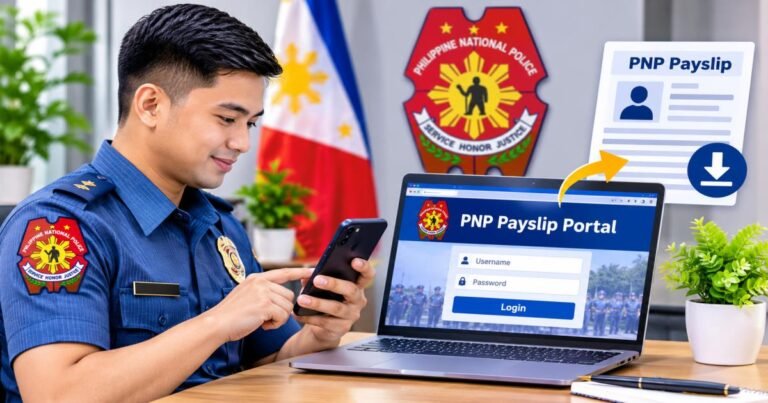
Yes. Open your smartphone web browser, navigate to payslip.pnppms.org, and sign in with your regular credentials to view or download PDF statements directly to your phone.